For a first AI-assisted audio edit, choose one short recording, one reversible change and one listening check. “Clean up the whole episode” is a large request hiding several smaller decisions. Start where you can hear whether the result is right.
Audionaut is a free, open-source desktop multitrack editor whose current documentation exposes editing tools to AI assistants through MCP. Its October 1, 2026 release, v1.6.4, includes expanded export formats and fixes around saved-project audio and reverting changes. That release date does not mean AI editing first appeared that day.
The useful question is what happens between an assistant saying “done” and a listener hearing the file. This guide proposes a small review routine for a spoken intro, interview excerpt or narration. It is based on the current documentation; we have not installed or tested Audionaut, its agent connection or its export quality.
Know which copy the assistant is changing
The agent manual makes an important distinction: with the project open, a routed command changes the live document as one undo step and leaves saving to you. With no app holding the project, commands read and write its file directly. Do not assume every agent action is an unsaved change you can casually dismiss.
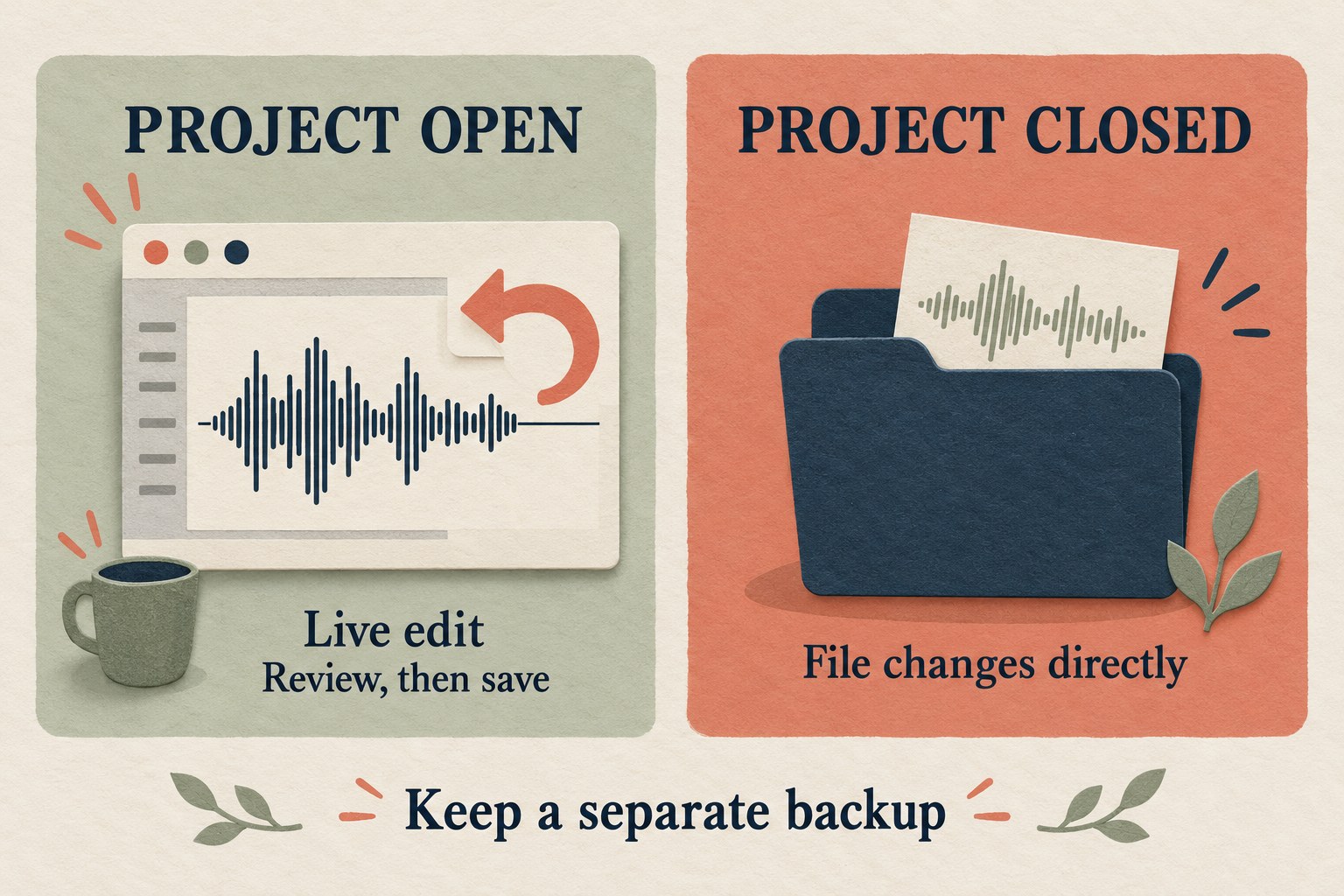
Before experimenting, make a separate backup of the project and its audio. Use a working copy with an unmistakable name, such as intro-edit-practice.audium. Open that copy and confirm its title before giving the assistant access. Keep the original out of the practice workflow.
The documented setup needs Audionaut and Node.js 18 or later. On macOS, the installed app's agent workflow expects projects, imported audio and export destinations inside the Music folder. Follow the official setup instructions for your assistant and operating system, and review the permissions before connecting tools. This article does not require you to install anything just to use the checklist.
Audionaut's privacy page describes opt-in usage statistics and local stem processing. Those statements do not establish how a separate AI assistant handles prompts or tool results. Use a nonsensitive practice recording you are allowed to edit; check your assistant's data policy before involving client or interview material.
Write a cut card before asking for a cut
Give the assistant an explicit target and unit. The manual says command positions are musical by default, so a bare “12” is not a reliable way to mean twelve seconds. Also distinguish the original recording's timestamps from positions on an already edited timeline.
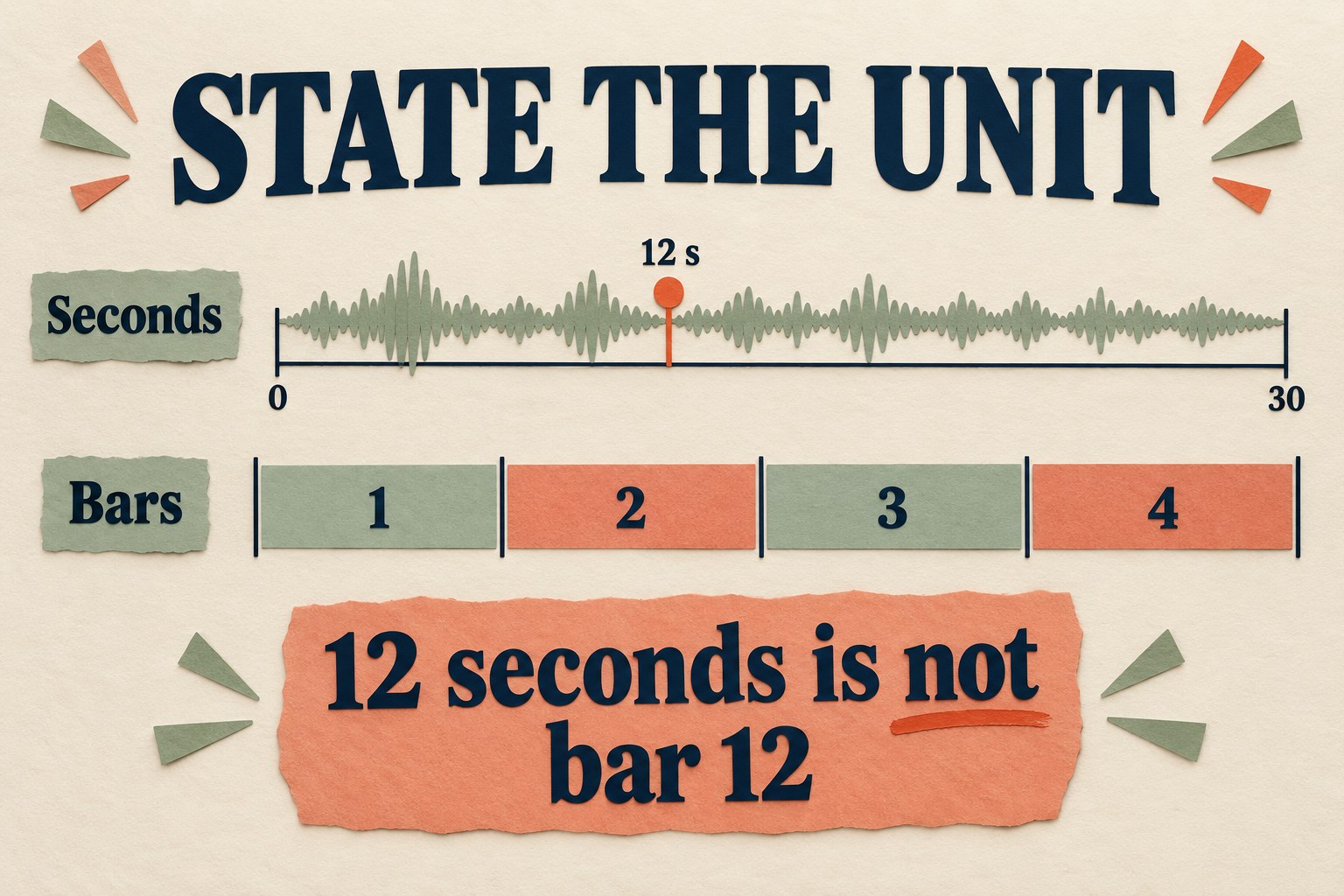
Use this original example as a planning card. The numbers are invented; listen to your own recording and replace them.
| Field | Example instruction |
|---|---|
| Working project | The open practice copy, not the original. |
| Target | The narration track named Intro. First identify its track and clip identifiers. |
| Coordinate system | Seconds from the current project timeline's start, before this edit. |
| First operation | Split at 12 seconds only. Keep both pieces in their current positions. |
| Preserve | Other tracks, gain, speed, routing and source audio. |
| Review point | Stop after the split. Report what changed; do not save, export, remove clips or submit a bug report. |
A split alone should not remove the pause or shorten the episode. That is deliberate: it lets you check the target and timing before asking for a more consequential edit. If the wrong clip changes, stop and undo that operation. Prompt wording is an instruction, not an enforced access-control system.
For the next operation, decide what the gap should do. Removing a clip can leave silence; moving later material can alter timing against music or another speaker. Say whether later clips must stay in place. Ask for a proposed change list before combining several operations.
Listen to the join, then to the sentence
A waveform can help locate a boundary, but it cannot tell you that a sentence still means the same thing. Use two passes:
- Local pass: play a short span starting before the join and ending after it. Listen for clipped syllables, clicks, abrupt room tone or an unnatural breath.
- Meaning pass: listen to the full sentence or exchange. Confirm the edit has not removed a qualification, changed who appears to answer, or made the pacing misleading.
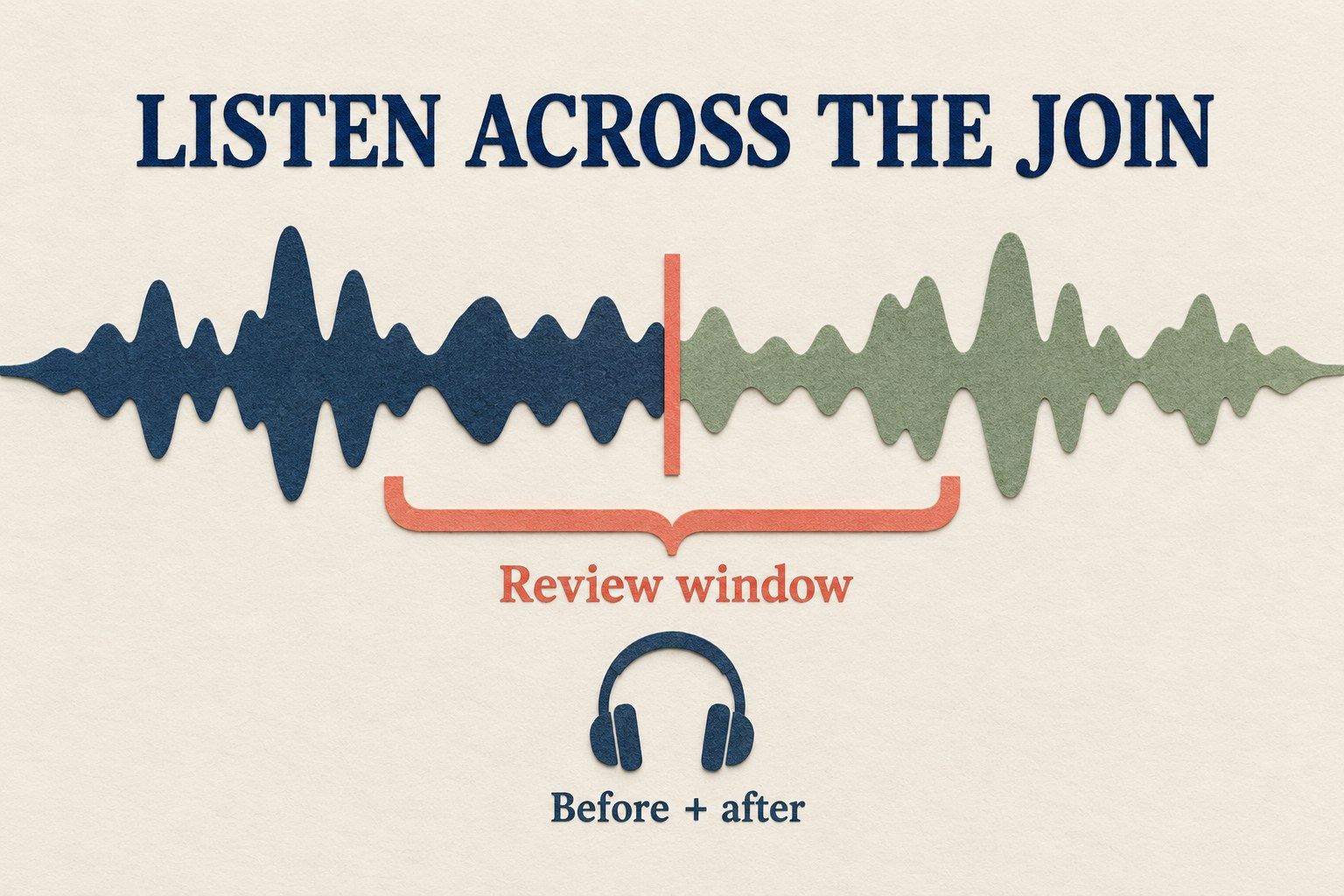
If the local pass fails, restore the last acceptable version and adjust one boundary at a time. If the meaning pass fails, keep more context. A smoother transition is not a reason to change what someone said.
Keep a small edit log with four columns: operation, timeline position and unit, what you heard, and keep or undo. After a removal or move, old timestamps may no longer identify the same passage. Refresh the log against the current timeline instead of stacking instructions based on stale positions.
Export the thing you actually reviewed
Audionaut distinguishes an arrangement, a clip and a named region. According to the export manual, a clip export includes its gain and fades, while a named-region command-line bounce uses raw region material without those clip adjustments. If you judged a faded clip by ear, exporting the underlying region is not an equivalent check.
For a first spoken-audio trial, use an explicit new output filename and a format your recipient accepts. Keep the editable project as well. Before exporting, confirm the intended section, included voices and output channels. A stereo mix can omit channels routed to higher-numbered hardware outputs; the documentation describes different behavior for multichannel and multi-mono exports.
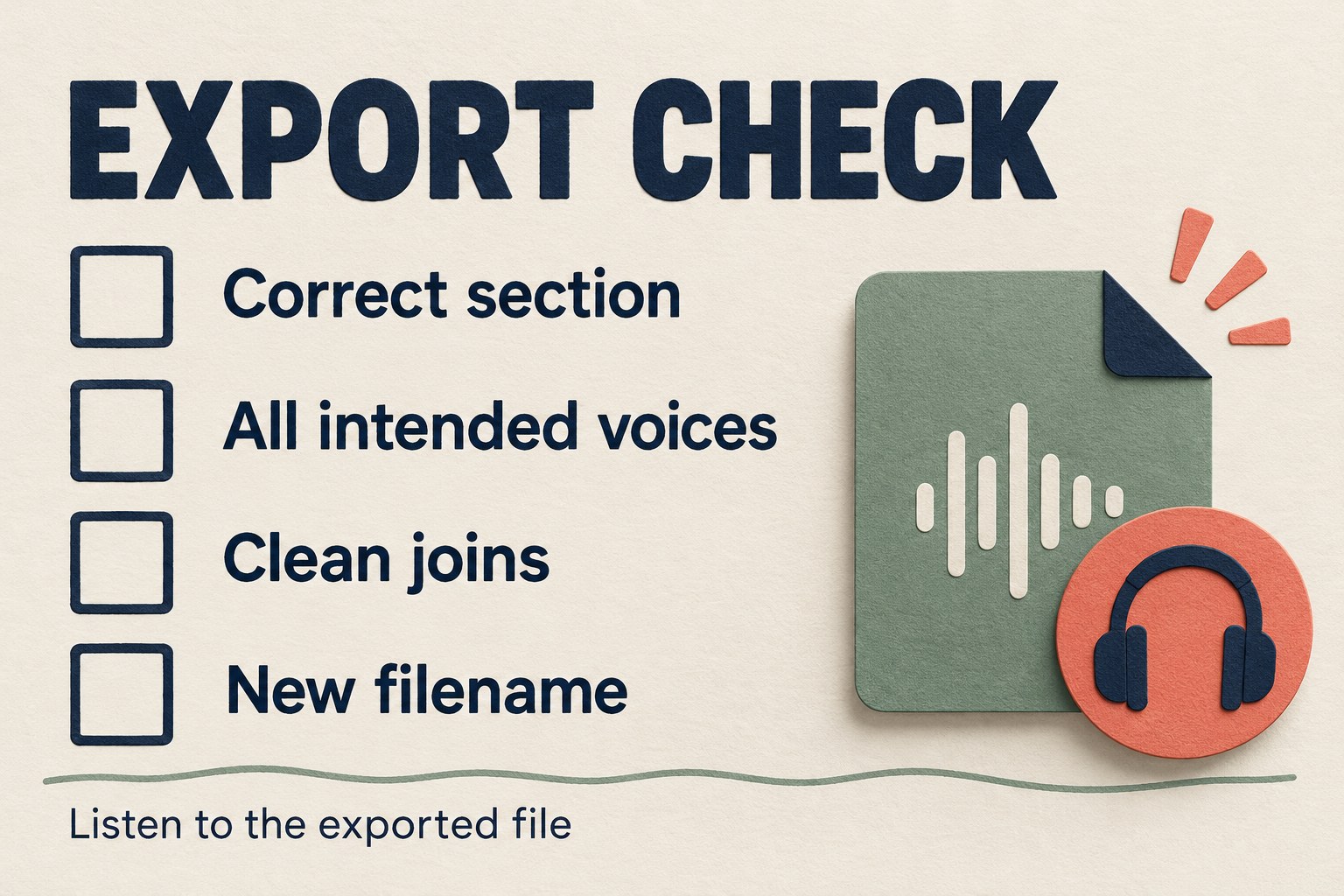
Open the exported file in a player and listen again. Check its beginning, every edited transition and its ending; for a short practice file, listen all the way through. Verify that the filename and destination match your plan. An export-success message establishes that a command completed, not that the correct interview answer is audible.
A ten-minute practice session, without a speed promise
Set aside a short session rather than aiming to finish a whole production. The time box is a suggested planning limit, not a measured performance claim.
- Choose a brief nonsensitive recording and make the working copy.
- Identify one clip and one split position in seconds.
- Make the split, inspect it, then undo and check that the prior state returns.
- If that behaves as expected, repeat the split and review the surrounding speech.
- Export the intended result to a new file and listen to that file.
Stop if you cannot identify the working copy, reconcile the timeline or verify a changed passage. Record the app version and what failed before considering a larger edit. Your first win is a change you understand and can review, not a shorter waveform.