A personal issue queue should answer one small question clearly: which items do I want to inspect next? Before saving a view, write that question down and check that the filter includes the work you expect.
GitHub's September 25, 2026 update adds private saved views to repository Issues pages. That provides a useful place for a personal triage routine. This guide offers an original query worksheet and a fictional test case, based on documentation checked October 7, 2026 (KST). It does not report a hands-on trial of the feature.

Choose a question small enough to check
Start with one repository and one decision. For example: “Show open bugs that are assigned to me or have no assignee, so I can review my work and identify items that need an owner.”
That sentence describes a reading queue. Finding an unassigned issue does not automatically make you its owner, and finding an assigned issue does not establish its priority. Read the item before deciding whether to act.
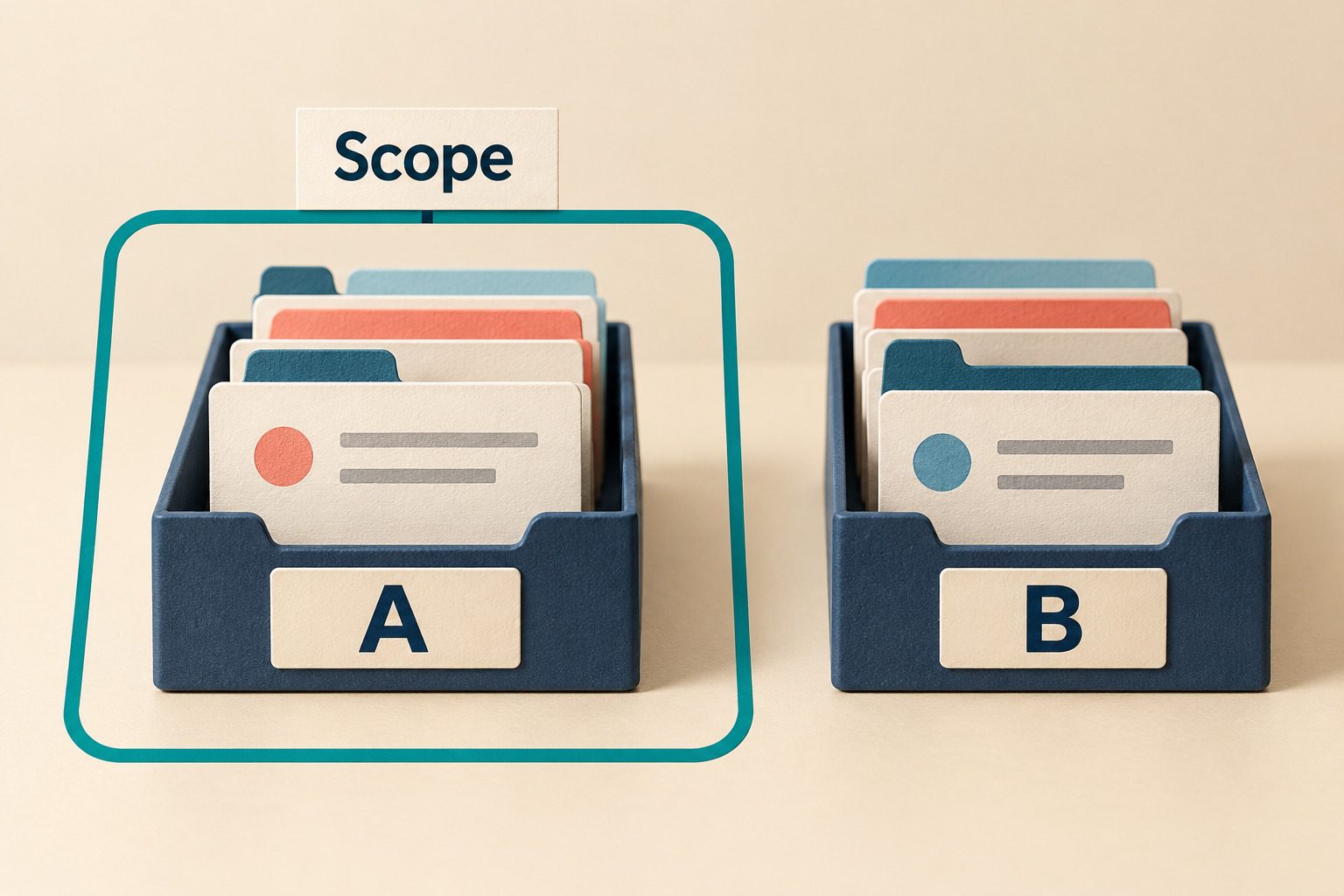
- Scope: one named repository.
- Included work: open issues carrying that repository's bug label.
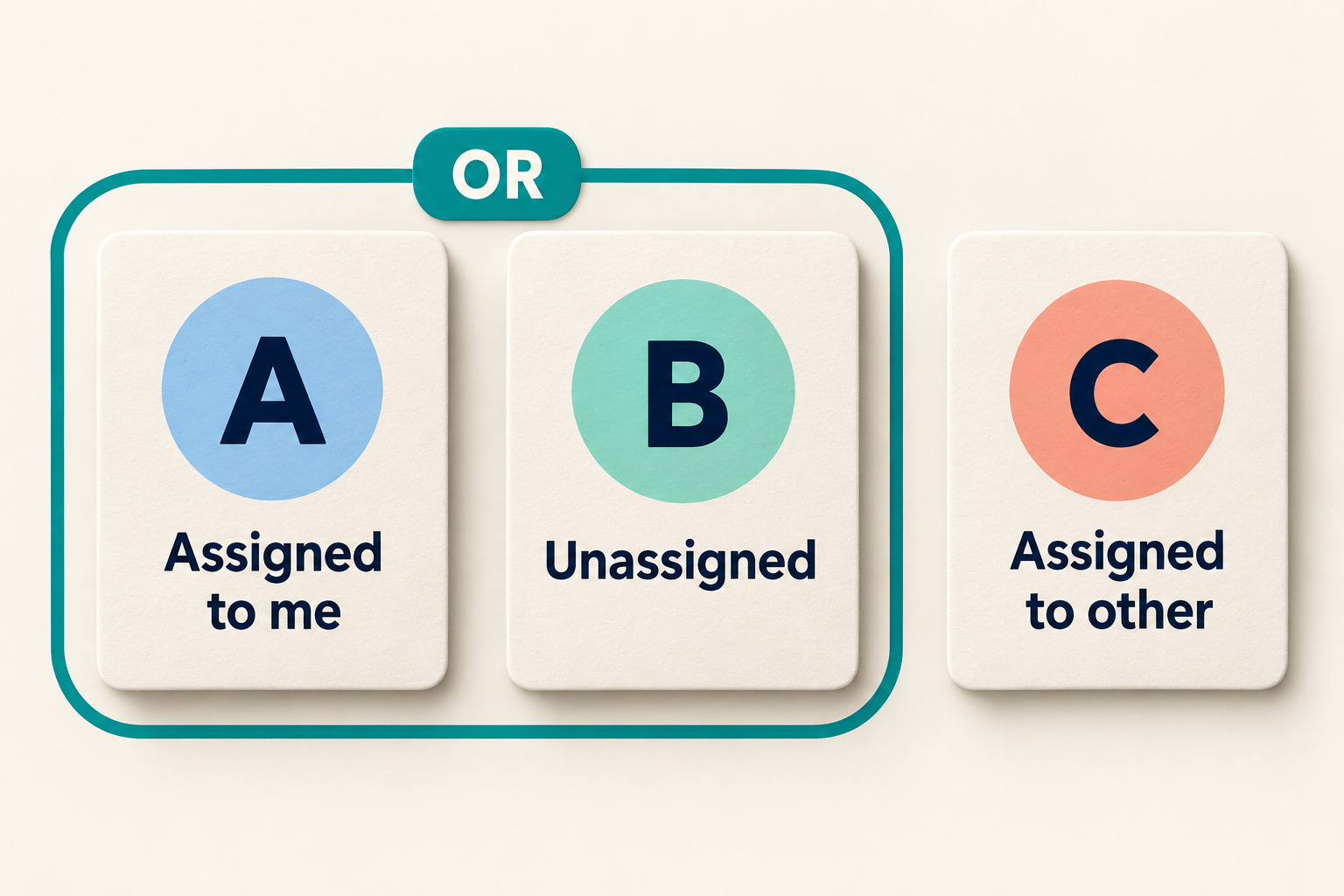
- Ownership rule: assigned to you, or assigned to nobody.
- Purpose: decide what needs attention during your next review.
Check that “bug” is actually a label used in the repository. If your team uses an issue type instead, adapt the question and filter deliberately. A familiar word in the issue title does not establish the label.
Build the query in pieces
GitHub's search reference documents repository, issue/state, assignee, label and missing-metadata qualifiers. @me refers to the current user. Replace OWNER/REPO below with your exact repository and use its actual label name.
repo:OWNER/REPO is:issue is:open label:"bug" (assignee:@me OR no:assignee)
Read the query back as a sentence before saving it. The parentheses keep the two ownership alternatives together; the repository, open-state and bug-label requirements apply to both.
The advanced-filter guide documents AND, OR and grouped expressions on repository Issues pages and the Issues dashboard. Spaces between statements act as AND. A filter that requires both assignee:@me and no:assignee asks for contradictory ownership conditions.
- Begin with the repository and open-issue conditions. Check that you recognize some results.
- Add the label. Inspect a known labeled item and a known item without that label.
- Add the grouped ownership condition. Check an item assigned to you and an unassigned item.
- Read any filter warning before continuing. Keep the plain-language question beside the final query.
Use sorting to choose a reading order after the inclusion rule is correct. GitHub supports oldest/newest created and updated sorts, among others. “Oldest created first” can be useful for a backlog pass, but age alone does not determine urgency. Keep any priority decision tied to the issue's actual context.
Try to disprove the queue with known examples
Before trusting a saved view, find existing examples that should appear and examples that should stay out. You can do this read-only; there is no need to create fake issues in a real team's tracker.
The fictional cases below assume the current user and use the chosen repository unless otherwise stated. They show the intended logic, not results retrieved from GitHub. A and B should appear in the example query; C through F should not.
| Example | Issue facts | Expected result |
|---|---|---|
| A | Open, bug label, assigned to you | Include |
| B | Open, bug label, no assignee | Include |
| C | Open, bug label, assigned only to someone else | Exclude: ownership condition fails |
| D | Closed, bug label, assigned to you | Exclude: state condition fails |
| E | Open, no bug label, no assignee | Exclude: label condition fails |
| F | Open bug assigned to you in a different repository | Exclude: scope condition fails |
If an issue has several assignees including you, it satisfies the assigned-to-you alternative. Check the actual assignee list rather than relying on the first avatar you notice.
For your own check, record direct links to a few suitable existing issues and why each should match or fail. If no example exists for a condition, write “not checked.” A small sample can catch a mistaken query; it cannot certify that every repository item is classified as your team intended.
Investigate an empty result before closing the review

An empty queue is worth explaining. It might be correct, or the saved query may be narrower than your question. Reopen the filter and work outward one condition at a time:
- Confirm the repository and signed-in account.
- Open a known issue directly through your existing access. Compare its state, labels and assignees with the query.
- Remove the ownership group temporarily. Then remove the label condition if necessary.
- Compare with the repository's broader open-issue list and note where the expected item reappears.
- Restore the intended filter after the investigation.
If the direct item is unavailable, leave that access question unresolved and use the normal team support route. Do not change repository visibility or request broad new credentials just to make a personal view work.
A useful review note is specific: “No matches for this query; the open bug I checked is assigned only to another person.” Avoid converting that observation into “the repository has no bugs.” Similarly, an issue leaving your queue could reflect reassignment or a label change. Open its record before describing it as finished.
Save the personal view with its purpose attached
Use the repository's private saved-view option for this personal queue and check the visibility shown before saving. If the available control or its audience is unclear, keep the tested query in your own work notes until you can confirm it.
Shared repository views are a separate choice. GitHub's June 25 introduction describes shared views created by people with triage access or above. Agree on a team-wide question before changing a shared view that colleagues rely on.
Name your personal view after its question, such as “My or unassigned open bugs.” Avoid names such as “All urgent work” when the filter cannot establish that claim. Saving a private view also gives you no reason to put secrets or private customer details in its name or query.

Keep a small saved-view worksheet
Copy these fields into your normal work notes. They make the view easier to repair when labels, responsibilities or repository structure change.
| Field | Your entry |
|---|---|
| Question | What decision will this queue help me make? |
| Scope and audience | Exact repository; personal or agreed shared use |
| Query and order | Complete filter text and chosen sort |
| Expected examples | Known included and excluded issue links, with reasons |
| Blind spots | Conditions not checked and work deliberately outside the filter |
| Review trigger | A label, ownership or repository change that should prompt another check |
When sharing the search itself with a colleague, explain any @me condition: their personal results can differ from yours. If you need to discuss the same particular work, share the relevant issue links through an approved team channel instead of relying on matching counts.
Finish by reopening the saved view and comparing its query with the worksheet. The useful result is a small, understandable queue whose inclusion rule you can explain, plus a clear place to look when an expected item disappears.