
A free booking page can be enough if you offer one simple meeting and keep your availability in a calendar the tool can check. The first limits to examine are meeting types, calendar connections and reminders. Unlimited bookings do not necessarily mean unlimited ways to book you.
Calendly and Google Calendar both offer a no-extra-subscription starting point for eligible accounts. Their free options work differently, so choose based on your schedule rather than the length of the paid feature list.
One meeting type can cover many appointments
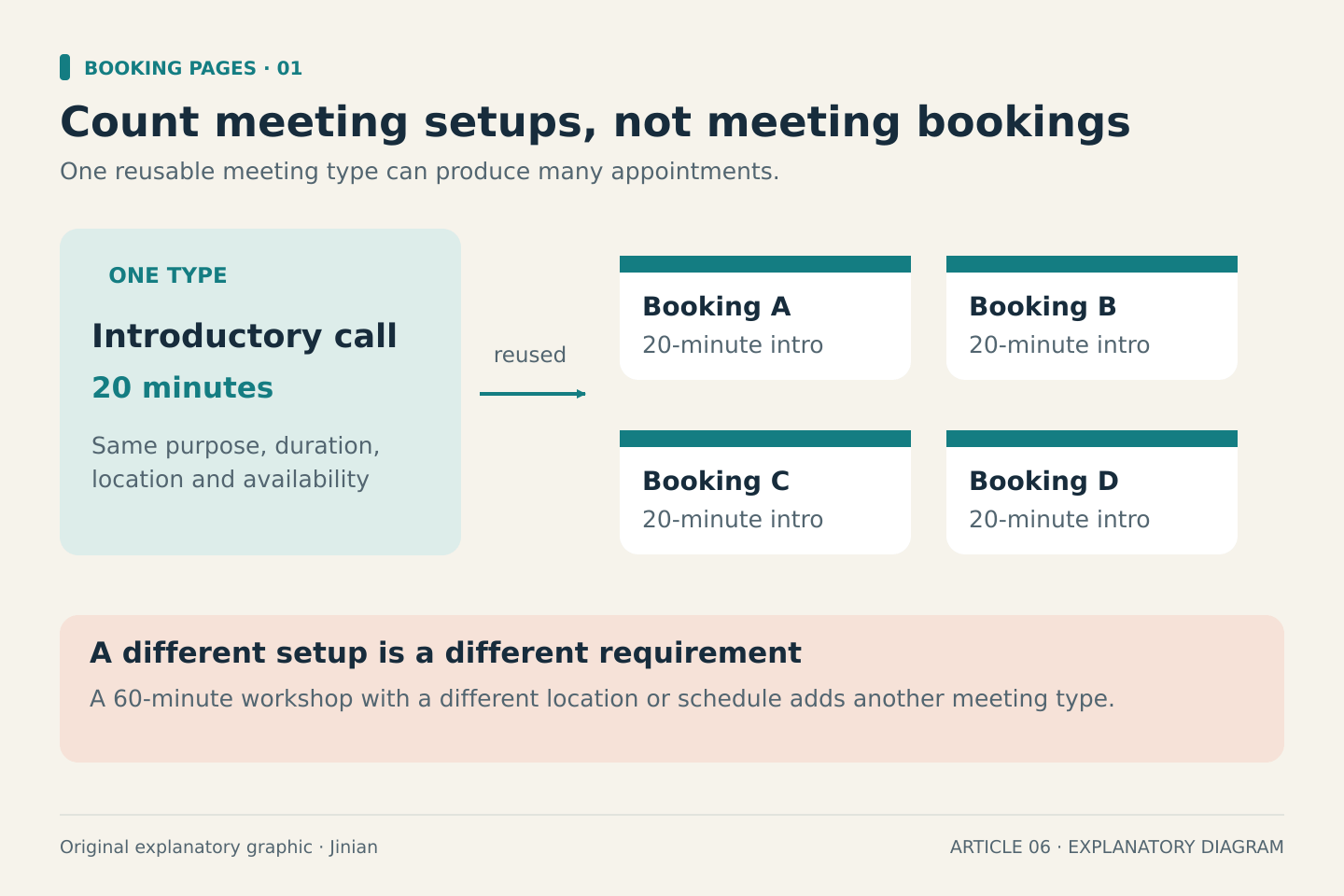
Calendly’s plan guide, updated September 2026, says the Free plan includes one event type, unlimited meetings and one connected calendar. It also includes confirmation emails and a customizable booking page.
An event type is the reusable setup for a meeting. A 20-minute introductory call is one type, even if many people book it. If you also need a 60-minute workshop with a different location and availability, that is a different scheduling requirement.
This is why a free plan can suit a busy consultant who offers one standardized introductory call, while being too restrictive for someone with only a few bookings split across several services. Count the distinct appointment setups you need, not just the number of meetings.
Google Calendar has a single-page starting point
Google’s appointment-schedule feature comparison says a personal Google Account or Workspace Business Starter account can create one booking page. Additional capabilities depend on an eligible subscription. Its comparison covers multiple schedules, automatic reminders and availability checks across multiple calendars.
If your work already revolves around Google Calendar, first check what your current account includes. Buying another scheduling tool may duplicate a feature you already have. Equally, do not assume every Google account has every booking feature: account type and subscription matter.
Google’s appointment-schedule introduction explains that the feature lets others book against your availability. Use the current setup guidance for your account rather than an older tutorial about a different booking feature.
Calendar conflicts are more important than appearance
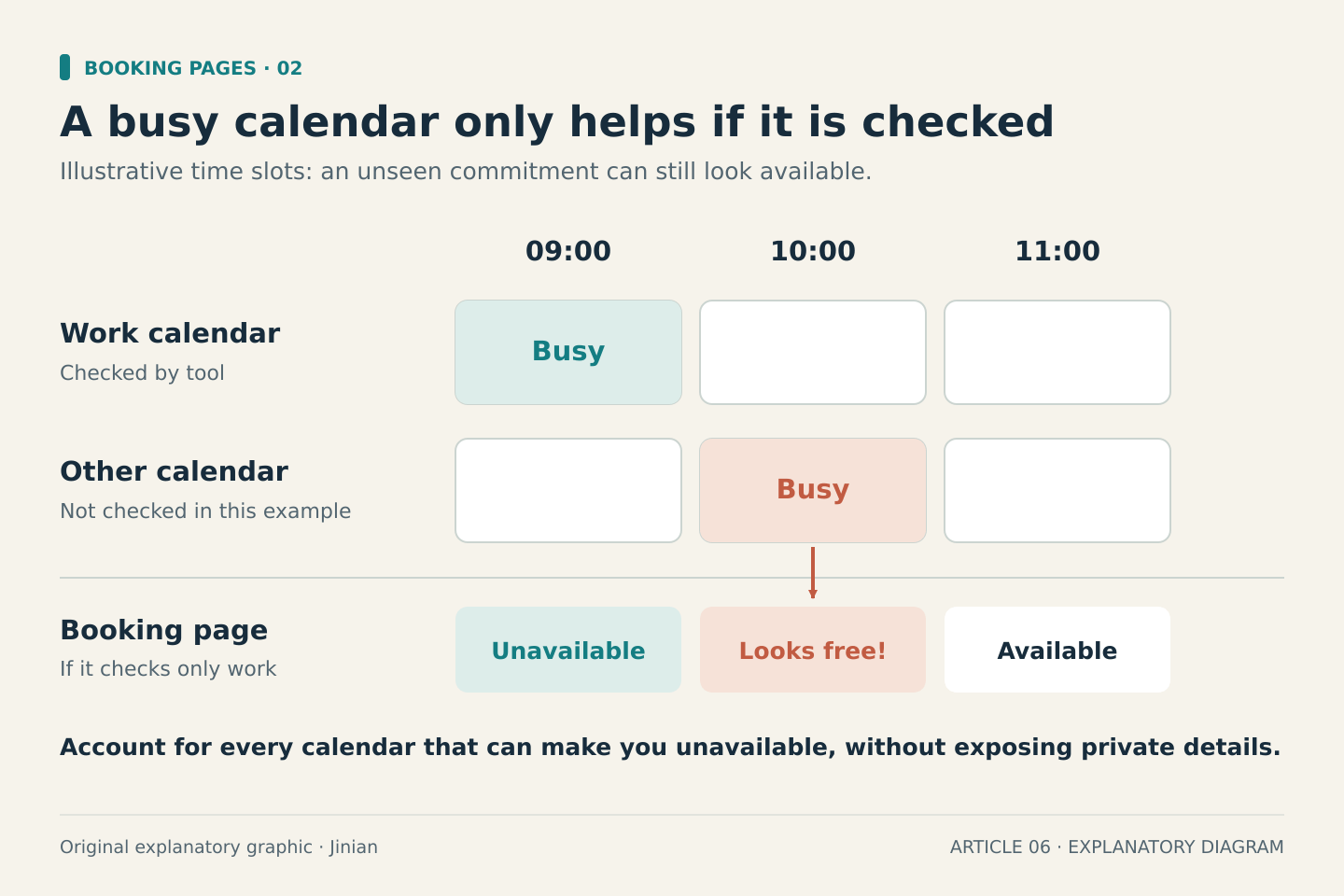
Make a list of every calendar that can make you unavailable: client calls, another job, personal appointments or a shared household commitment.
Then determine how the proposed booking tool will account for those commitments. If it checks only one calendar, an event stored elsewhere may not protect that time. A visually polished booking page is not useful if it offers times you cannot attend.
Do not solve this by making private calendar details public. Decide which calendars may be connected, what information the tool receives, and what invitees can see. If an organization manages your account, its rules may limit the available setup.
A confirmation is not the same as a reminder workflow
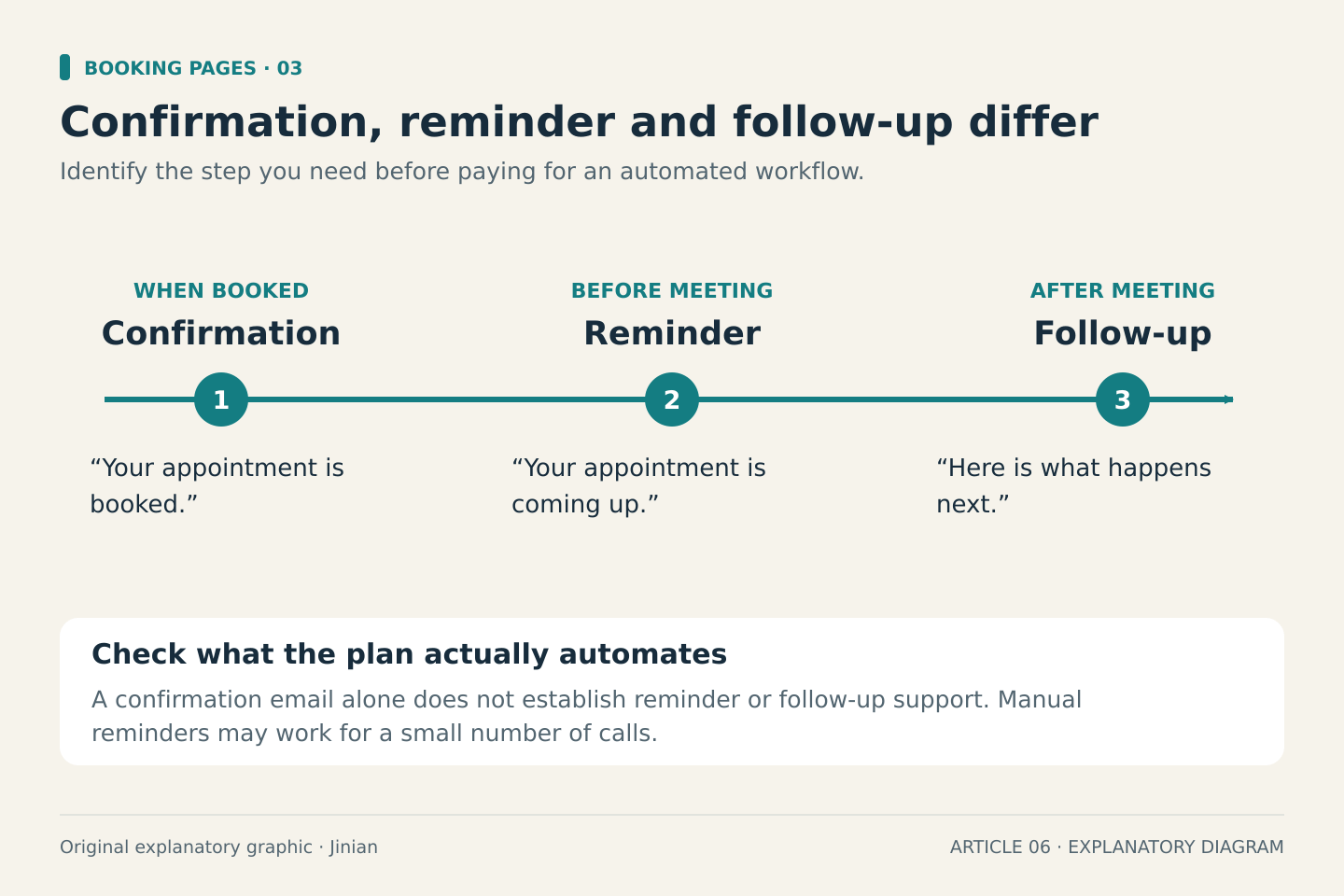
A confirmation tells someone their booking exists. A reminder arrives closer to the meeting, and a follow-up happens afterward. Identify which of those steps you actually need.
Calendly places automated reminders and follow-ups in its paid Standard plan, according to its current plan guide. Google’s comparison likewise distinguishes premium appointment features. Check the specific behavior before assuming that a free booking tool will run the entire appointment process.
For a small number of important calls, a manual reminder may be manageable. If repeatedly sending them becomes a burden, record that workload before deciding whether an upgrade is worthwhile. Avoid promising yourself a precise number of hours saved without measuring the current process.
Use three situations to make the choice
One introductory call and one calendar: start by evaluating the free option that fits the calendar you already use. Make the page’s meeting length, purpose and location clear.
Several services with different durations: list the required booking types. Compare a paid plan with a deliberately simpler workflow. Do not squeeze distinct services into a confusing single booking page just to preserve a free tier.
A work calendar plus another calendar that blocks your time: verify how conflict checking will work. If the free option cannot handle it, solve that gap before sharing the link widely.
These are decision examples, not claims that a particular setup was tested in an account.
Before you share the link
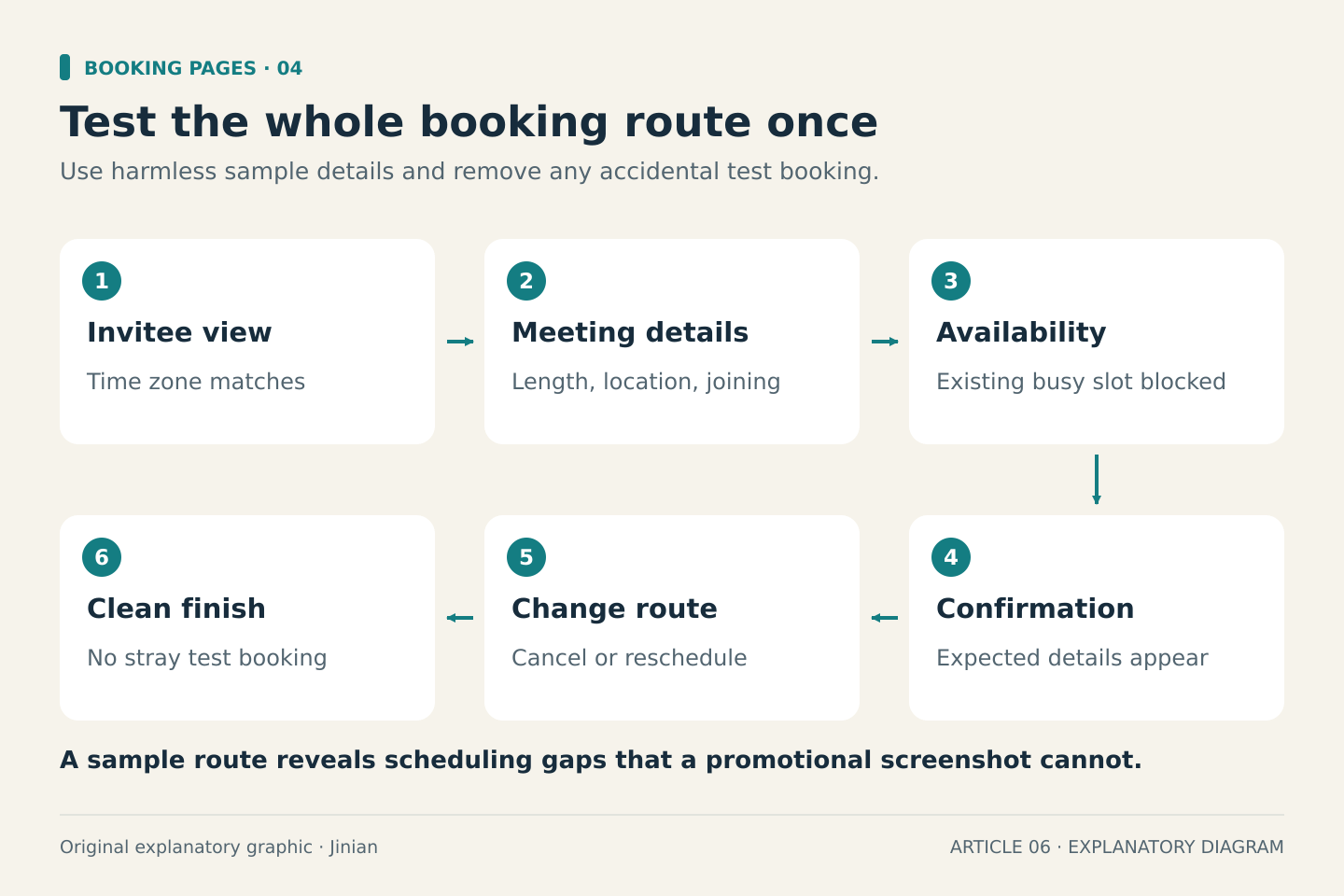
Run through a harmless sample appointment:
- Check the time zone from the invitee’s perspective.
- Confirm the duration, meeting location and joining instructions.
- Make sure an existing busy period is unavailable.
- Check what appears in confirmation messages.
- Find the cancellation or rescheduling route.
- Confirm that your real calendar does not contain an accidental test booking afterward.
Testing a single end-to-end booking tells you more than comparing promotional screenshots. Use sample details and obtain any permission needed before connecting someone else’s calendar.
When paying becomes reasonable
Upgrade when a specific limitation is repeatedly affecting your work: conflicting calendars, multiple services or necessary reminders. Check whether your existing suite already includes the feature before adding a separate subscription.
A free booking page is a useful starting point when its limits match your business. Keep it simple, but make availability accurate before making the page attractive.